Joomla Template Tutorial - Part 7: For more flexible design, we can use parameters in our template. So, you can provide options to change template without your users touch line codes. For example, your user can choose background color.
In this post, we try to provide background color option. Following this steps:
- Open templateDetails.xml within your Joomla\templates\mytemplate.
- Enter following bold code:
Read the rest of this entry »
Photoshop and Illustrator Tutorials and Resources
- Dynamic Recessed Watercolor Typography in Photoshop
In this tutorial, you will learn how to mix vector elements and watercolor effects with text to create a stunning design. It’s a quick process that depends heavily on good choices of images and colors.
-
Free iPhone Design Set for Photoshop
Read the rest of this entry »
Filed Under (
Browser, Firefox, Tips
) by
admin
on
16-09-2008
1-InspectorWidget
Adds toolbar button and context menus for invoking the DOM Inspector (DOMi) for either chrome or content elements.
2-Web Developer
A very useful add-on, adds a menu and a toolbar with various web developer tools.
Read the rest of this entry »
Joomla Template Tutorial - Part 6: In Joomla Template, the important thing is jdoc tag. As you see at below picture, jdoc tag is a way load module, component, and head component (like title, description, keywords, etc). In this post, we will try to use jdoc tag.
I just rememberring picture that placed jdoc in blocks.
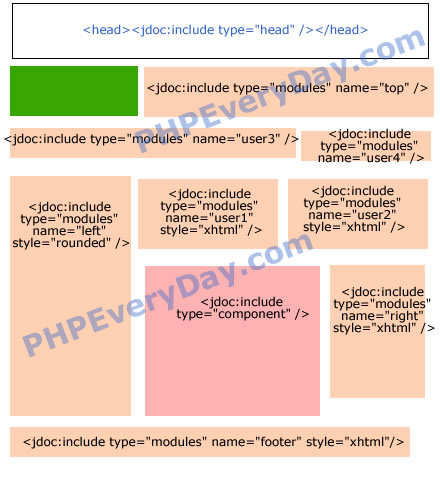
From the picture, you can guess the jdoc formula:
<jdoc:include type="[head|module|component]" />
So, open your index.php within mytemplate folder. Add following bold code:
< ?
// no direct access
defined( '_JEXEC' ) or die( 'Restricted access' );
? >
< html >
< head >
<jdoc:include type="head" />
< / head >

<body>

<table width="100%" border="1" bgcolor="#FFFF00">
    <tr>
      	<td
colspan="3">
<jdoc:include type="modules" name="top" /></td>
    </tr>
    <tr>
      	<td colspan="2">jdoc:include type="modules"
name="user3" /></td>
      	<td>jdoc:include
type="modules" name="user4" /></td>
    </tr>
    <tr>
      	<td rowspan="2"
valign="top">jdoc:include
type="modules" name="left" /></td>
      	<td colspan="2">
        	<table width="100%" border="1">
            	<tr>
                	<td>jdoc:include type="modules"
name="user1" /></td>
                	<td>jdoc:include type="modules"
name="user2" /></td>
                </tr>
            </table>
        </td>
    </tr>
    <tr>
      	<td height="200">jdoc:include
type="component" /></td>
      	<td valign="top">jdoc:include type="modules"
name="right" /></td>
    </tr>
    <tr>
      	<td colspan="3">jdoc:include type="modules"
name="footer" /></td>
    </tr>
</table>

< / body >
< / html >
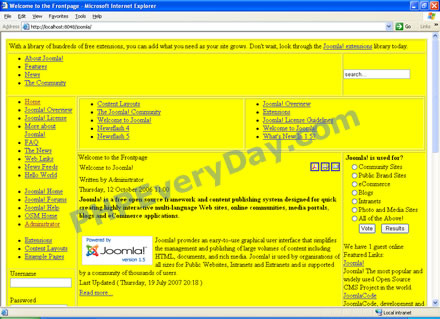
The result, like this:
Joomla Template Tutorial - Part 5: Before put content, we must design the blocks where module or component placed. In this posting, we use ‘classic’ HTML (I mean, use <table> not <div>).
Our layout target like following picture:
Ok, open index.php within folder mytemplate. Enter following code:
< ?
// no direct access
defined( '_JEXEC' ) or die( 'Restricted access' );
? >
< html >
< head >
< / head >
< body >
<table border="1" width="100%" bgcolor="#ffff00">
<tbody>
<tr>
<td colspan="3">Top</td>
</tr>
<tr>
<td colspan="2">User 3</td>
<td>User 4</td>
</tr>
<tr>
<td rowspan="2">Left</td>
<td colspan="2">
<table border="1" width="100%">
<tbody>
<tr>
<td>User 1</td>
<td>User 2</td>
</tr>
</tbody></table>
</td>
</tr>
<tr>
<td height="200">Component</td>
<td>Right</td>
</tr>
<tr>
<td colspan="3">Footer</td>
</tr>
</tbody></table>
< body >
< html >
Joomla Template Tutorial - Part 4: After create ‘embryo’ joomla template, now, we try to activate the template. In Joomla, we make this template as default.
- Login to Joomla as administrator.
- Click Extensions > Template Manager.
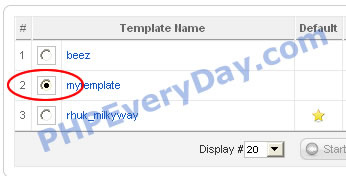
- You can see template list like below:
- Choose mytemplate by click radio button in front of mytemplate.
- Click Default button on top.
Now, when you point your browser to localhost/joomla, you can see ‘nothing’. Yup, because template used has changed. Active template is mytemplate. But we don’t define anything in this template. So, we just see blank page.
Joomla Template Tutorial - Part 3: Now, we will build our first joomla template. We start from simplest layout. This posting focus on step by step creating simple joomla template.
- Open folder where joomla template placed. Assuming, the template folder within www/joomla/.
- Create folder, named “mytemplate”.
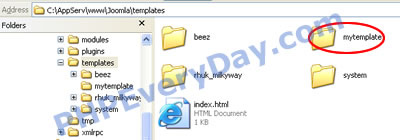
- Open mytemplate folder. Create a file name “index.php”.
- Create a file named “templateDetails.xml”. Enter following code:
< ?xml version="1.0" encoding="utf-8"?>
 <install version="1.5" type="template">
 <name>mytemplate</name>
 <version>1.0.0</version>
 <creationdate>07/09/08</creationdate>
 <author>Rakibul Islam</author>
 <authoremail>me@yahoo.com</authoremail>
 <authorurl>http://www.technologystory.net</authorurl>
 <copyright></copyright>
 <license>GNU/GPL</license>
 <description>TPL_MY_TEMPLATE</description>
 <files>
   <filename>index.php</filename>
   <filename>templateDetails.xml</filename>
 </files>
 <positions>
   <position>breadcrumbs</position>
   <position>left</position>
   <position>right</position>
   <position>top</position>
   <position>user1</position>
   <position>user2</position>
   <position>user3</position>
   <position>user4</position>
   <position>footer</position>
   <position>debug</position>
   <position>syndicate</position>
 </positions>
 </install>
When read above codes, you can guess, it is like metadata for this template. Content this XML file is about our Joomla template information.
Joomla Template Tutorial - Part 2: Before write Joomla template code, we will imagine what code that we will write. I draw ‘code’ in module posible position picture. This picture may help you easy understand how to write code in next step. You will see more clear.
From picture above, I think you can catch idea… It is simple, isn’t it?