

Make your own Joomla Template: Part 3 (My First Template)
Filed Under ( Joomla, Photoshop, Programming, Technology, Tips, Tutorial ) by admin on 07-09-2008
Tagged Under : Joomla, Tutorial
Joomla Template Tutorial - Part 3: Now, we will build our first joomla template. We start from simplest layout. This posting focus on step by step creating simple joomla template.
- Open folder where joomla template placed. Assuming, the template folder within www/joomla/.
- Create folder, named “mytemplate”.
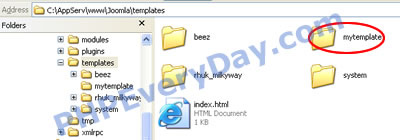
- Open mytemplate folder. Create a file name “index.php”.
- Create a file named “templateDetails.xml”. Enter following code:
< ?xml version="1.0" encoding="utf-8"?>
 <install version="1.5" type="template">
 <name>mytemplate</name>
 <version>1.0.0</version>
 <creationdate>07/09/08</creationdate>
 <author>Rakibul Islam</author>
 <authoremail>me@yahoo.com</authoremail>
 <authorurl>http://www.technologystory.net</authorurl>
 <copyright></copyright>
 <license>GNU/GPL</license>
 <description>TPL_MY_TEMPLATE</description>
 <files>
   <filename>index.php</filename>
   <filename>templateDetails.xml</filename>
 </files>
 <positions>
   <position>breadcrumbs</position>
   <position>left</position>
   <position>right</position>
   <position>top</position>
   <position>user1</position>
   <position>user2</position>
   <position>user3</position>
   <position>user4</position>
   <position>footer</position>
   <position>debug</position>
   <position>syndicate</position>
 </positions>
 </install>
When read above codes, you can guess, it is like metadata for this template. Content this XML file is about our Joomla template information.
Related posts:
