
Vista Speed Secret #4: Disable Automatic Disk Defragment

Filed Under ( Hacks, Technology, Tips, Tutorial, Windows Secret ) by admin on 21-01-2009

Tagged Under : , ,

http://www.technologystory.net/wp-content/plugins/sociofluid/images/digg_48.png http://www.technologystory.net/wp-content/plugins/sociofluid/images/reddit_48.png http://www.technologystory.net/wp-content/plugins/sociofluid/images/blinklist_48.png http://www.technologystory.net/wp-content/plugins/sociofluid/images/newsvine_48.png http://www.technologystory.net/wp-content/plugins/sociofluid/images/technorati_48.png http://www.technologystory.net/wp-content/plugins/sociofluid/images/magnolia_48.png http://www.technologystory.net/wp-content/plugins/sociofluid/images/google_48.png http://www.technologystory.net/wp-content/plugins/sociofluid/images/myspace_48.png http://www.technologystory.net/wp-content/plugins/sociofluid/images/facebook_48.png http://www.technologystory.net/wp-content/plugins/sociofluid/images/yahoobuzz_48.png http://www.technologystory.net/wp-content/plugins/sociofluid/images/sphinn_48.png

Windows Vista uses an always-on defragment set up that isn’t that necessary and will cause your system to slow down. Remember to run a defragment manually once a month.

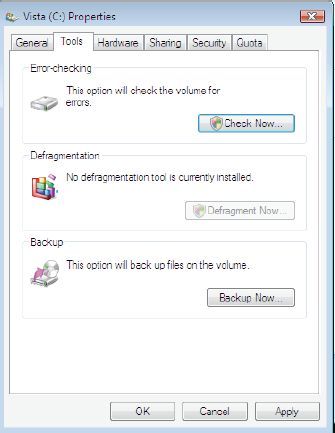
To shut down this feature:

  1. Click the Start button
  2. Select Computer
  3. Right-click on C: Drive icon
  4. Select Properties
  5. Click the Tools tab
  6. Uncheck Run on a schedule
  7. Click OK

Related posts:

  1. Vista Speed Secret #7: Disable Automatic Windows Defender Operation
  2. Windows Vista Tips: Disable Automatic Restart
  3. Windows Vista Tips: Disk Defragmenter
  4. Vista Speed Secret #2: Disable Unnecessary Graphical Effects
  5. Vista Speed Secret #9: Disable Unused Services

Comments:

Post a comment

Facebook fan page of Technology Story Technology Story on twitter
HI