

Windows Vista Tips: Select Multiple Files with Checkboxes
Filed Under ( Technology, Tips, Tutorial, Windows Secret ) by admin on 14-04-2009
Tagged Under : Tips, Vista, Windows
There are many occasions when you will want to select multiple files in Windows Explorer view when the normal “drag and highlight” can’t cope with the spread of files.
The usual method of selecting these multiple files is to hold down CTRL and then single click on each file you wish to select.
However, Windows Vista has introduced a much easier and more convenient method of selecting multiple files.
To enable this, load Windows Explorer by pressing WINDOWS KEY + E or going to Start Menu > Computer. Now, click on the Organise button, then Folder and Search Options:
Then click the View tab and tick Use Check Boxes to Select Items, followed by OK:
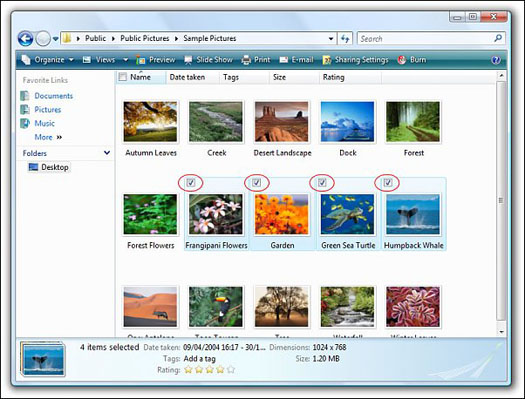
When you return to the Explorer window, you will be able to select each item by single clicking on it:
Related posts:

I tried setting check boxes and Vista, in it’s infant wisdom, will still only let me click one. Clicking another box deletes the click in the previous one. It dos’t matter if I also hold down [Shift] or [Ctrl]. I can only get one box at a time. I’ve got thousands of files to move around, consolidate and organize. At this point I have ordered Windows 7. If it is no better, my final solution may have to be to give up and go to Apple.