Remote Desktop is an easy way of controlling a PC that you can’t physically get to. You can access the system as if you were sitting right in front of it, allowing you to run applications, access files etc…
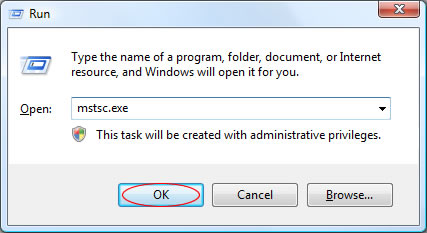
To get started, first make sure you have enabled remote desktop on the PC you wish to control. Once you have done this, load up the remote desktop application by running mstsc.exe from the run box (to access this, press WINDOWS KEY + R).
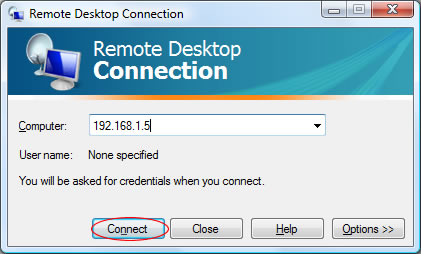
Now, enter the IP address of the computer you wish to connect to:
If you are trying to connect to a PC that has a version of Windows earlier than Vista, you may receive the following warning. Click Yes to continue connecting:
A Window will then load, which is effectively the view of the PC you are connecting to. You will be required to log on before you can take full control of the PC.
Remote Desktop is a great Windows feature that lets you control another PC from your own computer, or vise versa. Vista cannot be controlled by another PC by default, meaning that you have to enable this feature to allow others to remotely access your PC.
This service is quite secure and is great for allowing another user to virtually fix a problem when hands on access isn’t available. However, I wouldn’t enable this service unless you need to allow remote access.
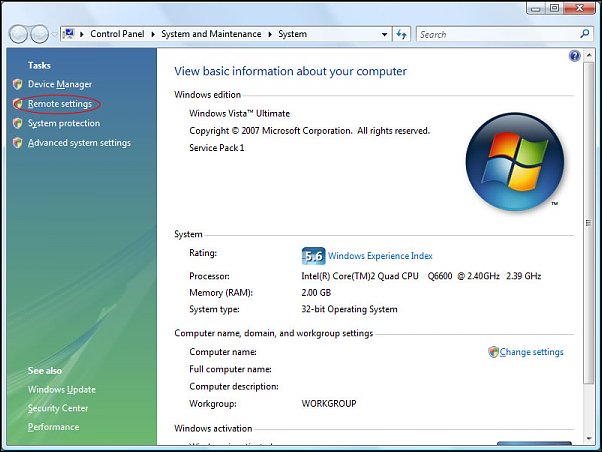
To enable Remote Desktop, load up the system overview panel by pressing WINDOWS KEY + PAUSE/BREAK. Then, click on Remote Settings:
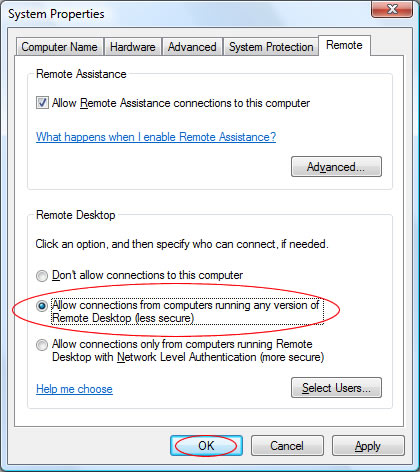
Now, select Allow connections from computers running any version of Remote Desktop and click OK:
You can now connect to this PC from any other Windows PC over a network or the internet. To learn how to do this, read one of our other remote desktop tutorials.
Some Internet browsing problems can be caused by invalid DNS cache entries stored on your PC. This normally speeds up accessing websites, as it knows the previous location of the web server. If you get DNS or 404 errors when browsing a particular website, it might be worth trying this tip and restarting your browser.
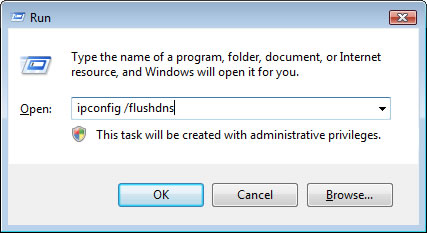
First, start the run box (You can do this by pressing WINDOWS KEY + R) and then type in the following and click OK:
ipconfig /flushdns
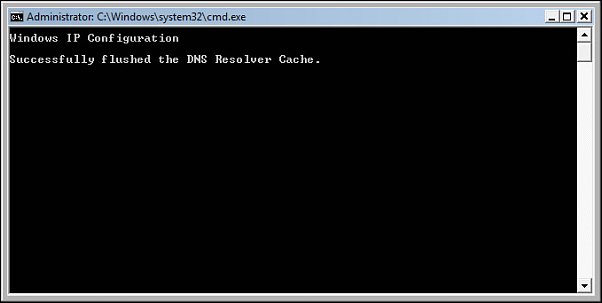
This will briefly flash a DOS box up, confirming that the DNS cache has been flushed:
You can now restart your web browser and re-try accessing any troublesome websites.
Windows Vista includes a great tool for resizing partitions without losing data, which is something that used to require 3rd party tools in previous versions of Windows (such as Partition Magic).
Of course, with any process involving changing the way your data is stored, I would recommend backing anything important up to external storage.
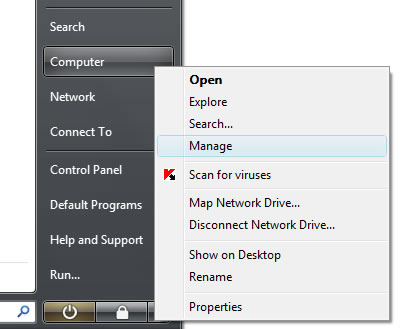
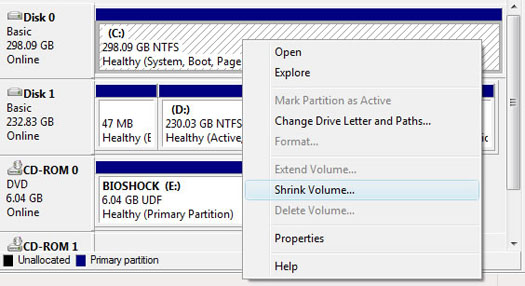
To load the Disk Management too, click on the Start Menu then right click on Computer and select Manage.
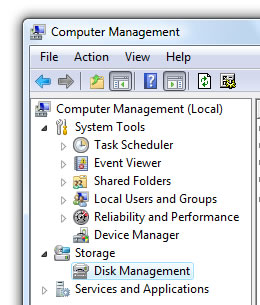
Then select Disk Management from the storage section in the left panel. This will bring up an overview screen showing all of the drives in the computer.
Select the partition you want to resize by right clicking on it and choosing either “shrink” or “expand” to change the partition size.