

Windows Vista Tips: How to use Remote Desktop
Filed Under ( Technology, Tutorial, Windows Secret ) by admin on 25-06-2009
Tagged Under : Desktop, Remote, Setup, Tips, Vista, Windows
Remote Desktop is an easy way of controlling a PC that you can’t physically get to. You can access the system as if you were sitting right in front of it, allowing you to run applications, access files etc…
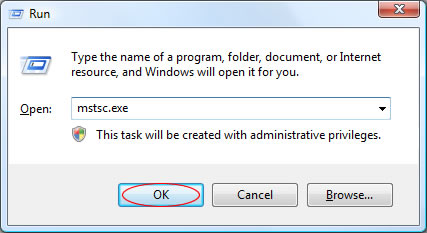
To get started, first make sure you have enabled remote desktop on the PC you wish to control. Once you have done this, load up the remote desktop application by running mstsc.exe from the run box (to access this, press WINDOWS KEY + R).
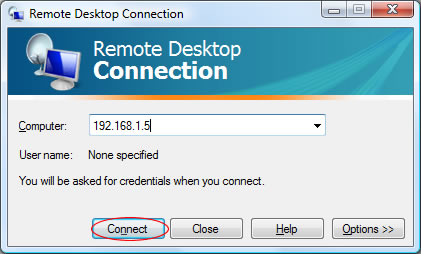
Now, enter the IP address of the computer you wish to connect to:
If you are trying to connect to a PC that has a version of Windows earlier than Vista, you may receive the following warning. Click Yes to continue connecting:
A Window will then load, which is effectively the view of the PC you are connecting to. You will be required to log on before you can take full control of the PC.
Related posts:
