

Windows Vista Tips: Windows Firewall Exceptions
Filed Under ( Technology, Tips, Tutorial, Windows Secret ) by admin on 13-07-2009
Tagged Under : Firewall, security, Tips, Vista, Windows
The built-in Windows Firewall does an acceptable job of protecting your computer against many backdoor communication attempts. Many applications that require a firewall exception to be added will do so automatically during installation (such as online games), but sometimes you will need to manually allow an application to have access to the internet.
First, load up the Control Panel by clicking on the Start Menu then Control Panel:
Then, click Security:
Now select Allow a program through Windows Firewall:
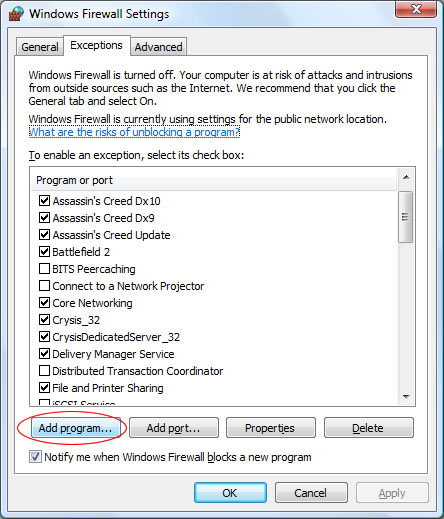
Once the Windows Firewall Settings box has loaded, click Add Program (if you wanted to allow a port, click Add Port):
You can add an application from the list (if it appears), or browse for the application you wish to allow manually:
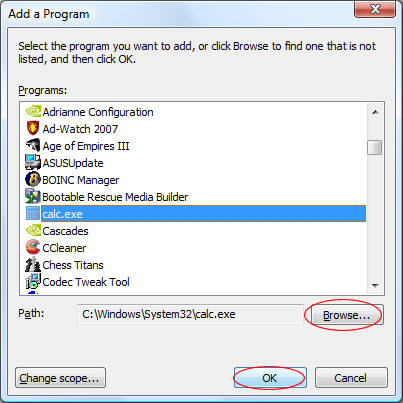
Once you have selected the application, click OK. Once you have clicked OK for a second time in the Firewall Settings window you have successfully added a firewall exception.
Related posts:

[...] more here: Windows Vista Tips: Windows Firewall Exceptions Filed under On, Uncategorized, Up, at, auto, click, do, in, internet, job, line, no, now, [...]
[...] the whole story here: admin aggregated by [...]
[...] Original post by admin [...]
[...] original here: Windows Vista Tips: Windows Firewall Exceptions Posted by jedwan Uncategorized Subscribe to RSS [...]
[...] This post was Twitted by best_tips [...]