

Windows Vista Tips: Map FTP to a Drive
Filed Under ( Technology, Tips, Tutorial, Windows Secret ) by admin on 14-07-2009
Tagged Under : Map, Network, Tips, Vista, Windows
Many people access FTP sites, either to upload a website or to backup data from their PC. The normal way to access the FTP is to use some software called an FTP client, but there is a much easier way of accessing these.
Just like you can map a network share to appear as a drive on your PC, you can also map FTP to a drive. This means if you use FTP to upload a website, you can browse your site’s files using a drive letter that you assign in Windows Explorer.
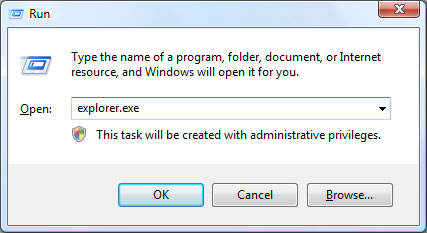
First open Windows Explorer by running explorer.exe from the run menu (press WINDOWS KEY + R to access this):
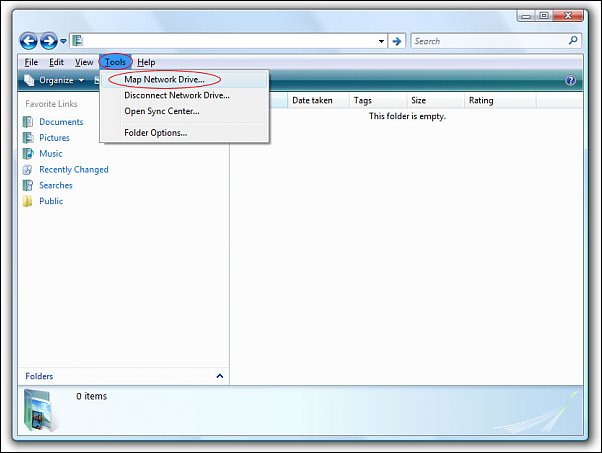
Once Windows Explorer loads, press ALT to access the toolbar and then click Tools > Map Network Drive.
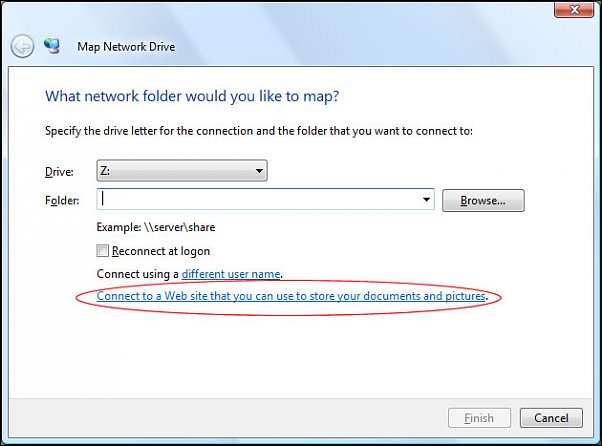
Now, click Connect to a Web site that you can use to store your documents and pictures:
Click next on the first page of the wizard:
Now click Choose a custom network location and click next to specify a FTP site:
Enter your FTP address and click next (in this example we use the Microsoft public FTP):
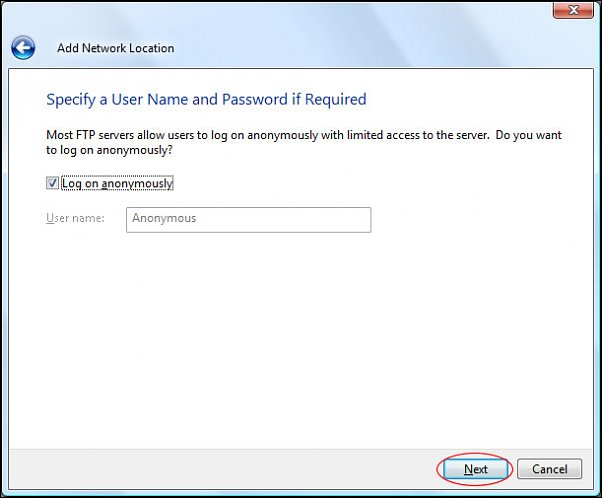
If you need a username and password, enter them here. Otherwise, click next:
Now choose a name and click next:
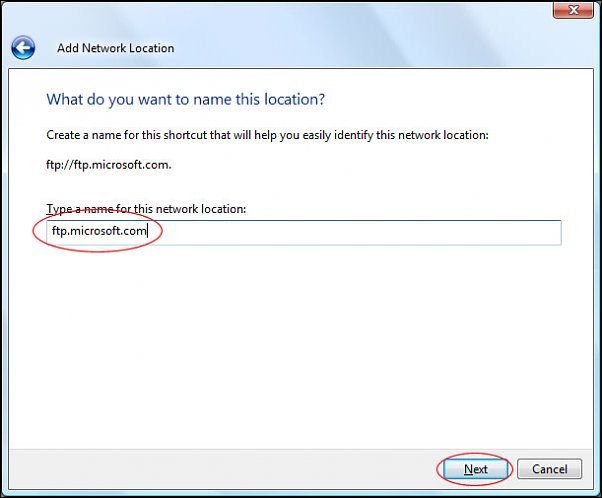
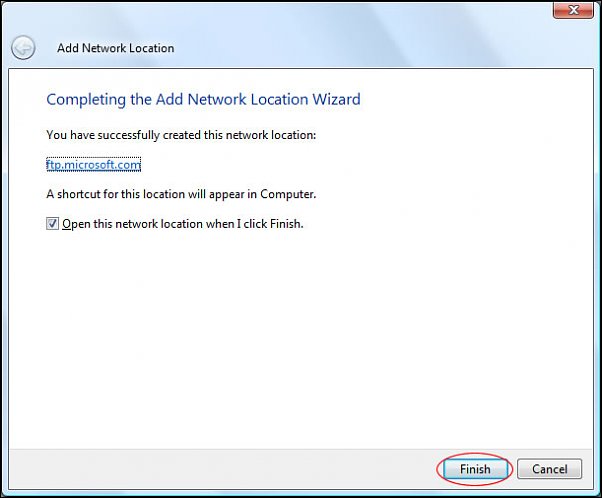
Your new FTP drive is up and running, click finish to complete the wizard and bring up the new drive:
You can now view the FTP site as a folder in Windows Explorer:
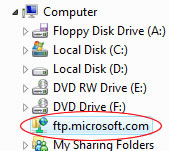
Although you can’t technically use this as a normal drive (i.e. by accessing it via x:\) you can select the FTP site from almost any application as a drive. If you really need to map the FTP site as a drive, try using NetDrive (and run it under XP compatibility mode).
Related posts:
