

3.2.3 Joomla Media Manager
Filed Under ( Joomla, PHP, Programming, Technology, Tutorial ) by admin on 16-09-2009
Tagged Under : easy learn joomla programming, Joomla, joomla code, joomla programming
This page is used for managing the picture files either in the format of jpg, gif, and png. You can also group these files into folder which an appropriate with its name. Of course, you can only make and modify the folder. When you see the Media Manager page for the first time, you must be familiar with it. Actually, the Media Manager appearance is the same with Windows Explorer. He has two variations:
• Thumbnail View shows icon preview from those files. The example is in the picture 3.10.
• Detail View shows file datas in the list form. These data such as preview, picture name, dimension, and size file.
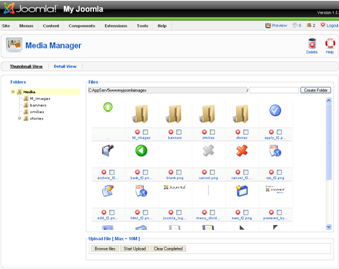
Picture 3.10 Media Manager page
Make New Folder
You can use folder in order to group the picture files in one theme. It will make you easier in organizing those pictures. Here are the steps in making new folder:
1. Open the Media Manager page.
2. In the upper part of Files group panel, you will find an item that is used for making folder. Input the new folder name into the field.
Picture 3.11 Field in adding folder
3. Click the Create Folder button then you will get new folder.
Uploading the Picture File
Here are the steps in uploading file:
1. Open the Media Manager page.
2. If you wish that the file is uploaded into one folder, click the folder. Then you will go to that folder.
3. In the lower part, click the Browse Files button.
Picture 3.12 The button series to upload the picture file
4. You will get the Select File(s) dialog box. Choose the file that you want to upload and you can upload in more than one file. Nevertheless, Joomla! gives the maximum limit of 10M in one •departure.•
5. After choosing the files that will be uploaded, click the Start Upload.
6. Wait until the file is finish in uploaded. The sign if the file is already succeeded in uploaded is the progress bar shows the completed written.
Picture 3.13 File is success in uploaded
After succeeded in uploading the file, click the Clear Completed button. This button is used to delete the files appearance which is already uploaded. Now, you already have clean appearance again.
Delete Picture
Here are the steps in deleting the picture file:
1. Open the Media Manager page.
2. Open the folder where the file is kept.
3. Check the checkbox that is located next to the file’s name.
4. Then, click the Delete button in the upper right.
Related posts:
