

3.3.4 Make New Joomla Menu
Filed Under ( CSS, Joomla, PHP, Programming, Technology, Tutorial ) by admin on 12-11-2009
Tagged Under : easy learn joomla programming, Joomla, joomla code, joomla programming
Adding New Menu
In this subsub chapter, we will try to make new menu. By knowing the making of the new menu, you can make your own menu according to your needs. Here are the steps in making new menu:
1. Open Menu Manager through Menus > Menu Manager.
2. Click the New icon in the upper toolbar.
Picture 3.39 New icon in Menu Manager
3. You will get the form for making new menu (as in the picture 3.40). For the practice, we will make the PHP site menu.
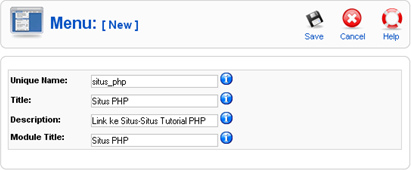
Picture 3.40 The form of the making new menu
Beneath are the items in the form:
- Unique Name: Write a unique name and it cannot be the same between one and another. There is no space in giving this name.
- Title: The menu title. The text that you are written here will be publicated.
- Description: The explanation for menu.
- Modul Title: The title which will be given into the module mod_mainmenu. If you do not fill this, the menu will not appear in the front end.
Click the Save icon in toolbar. After you keep it, the new menu appears in the lower order of Menu Manager.
Adding Menu Item
After making new menu, it is time for you to add new menu item. Here are the steps in making the menu item:
1. Click icon in the Menu Item(s) colom.
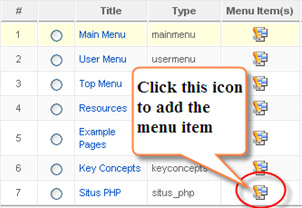
Picture 3.41 Icon to add the new menu item
2. You will get Menu Item Manager. Click the New icon.
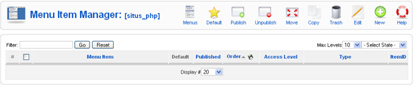
Picture 3.42 Menu Item Manager
3. Next, you will get the choice page of the menu item type. For this practice, choose External Link.
4. Next, you will get form to get the detail information about the new menu item. Fill as the example in the picture 3.43.
5. Click the Save button in the upper toolbar.
6. You can repeat these steps again in order to make another new menu item.
Picture 3.43 Inputting the detail information about the new menu item
The menu item which is already made by you will appear in the Menu Item Manager. In Menu Item Manager, you are allowed to copy, to move, to delete the menu item, and to edit it again.
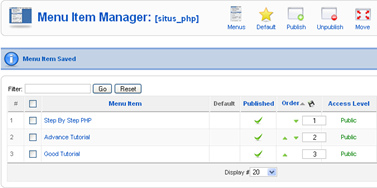
Picture 3.44 The menu item list which have been made
Activation Menu
You cannot still see your new menu in the front end yet. In order to see it, you have to activate it first. Here are the steps in activating your new menu:
1. Open the Module Manager through Extensions > Module Manager.
2. Find the new menu name in the module list.
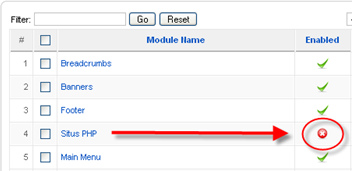
Picture 3.45 New menu in the module list
3. You will get the red icon in the Enabled colomn. It means that your menu is not active. In activating it, click the icon until it turns on into the green icon which means the menu is already active.
Now, open your Joomla! front end. You will see you new menu in the upper order.
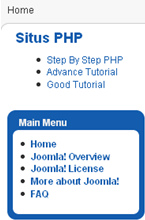
Picture 3.46 New menu appears in the upper part
Change the Menu Appearance
After seeing the appearing of the new menu in the front end, probably, you will think that: why its appearance does not the same with the other menu. Well, if we pay attention to the source code in the new menu, it can be such like this:
<div class="module">
 <div>
  <div>
   <div>
    <h3>Situs PHP</h3>
    <ul class="menu">
     <li class="item53"><a href="http://www.phpeveryday.com"
target="_blank"><span>Step By Step PHP</span></a></li>
     <li class="item54"><a href="http://www.devshed.com"
target="_blank"><span>Advance Tutorial</span></a></li>
     <li class="item55"><a href="http://www.sitepoint.com"
target="_blank"><span>Good Tutorial</span></a></li>
    </ul>
   </div>
  </div>
 </div>
</div>
Where did I can get that code? It is easy; you only have to click right in the browser. If you use Firefox, choose View Page Source. You will get the source code in that page. Now, we will compare the code with the Main Menu:
<div class="module_menu">
 <div>
  <div>
   <div>
   <h3>Main Menu</h3>
   <ul class="menu">
    <li id="current" class="active item1">
<a href="http://localhost:8050/myjoomla/"><span>Home</span></a></li>
    <li class="parent item27">
<a href="/myjoomla/joomla-overview.html"><span>Joomla! Overview</span></a></li>
    <li class="item2">
<a href="/myjoomla/joomla-license.html"><span>Joomla! License</span></a></li>
    <li class="item37">
<a href="/myjoomla/more-about-joomla.html"><span>More about Joomla!</span></a></li>
    <li class="item41">
<a href="/myjoomla/faq.html"><span>FAQ</span></a></li>
   </ul>
   </div>
  </div>
 </div>
</div>
Is there any difference between both of them? Yup, the differences are in the class name: module and module_menu. It is related with the CCS which is used by the active template. In order to get the same form menu, you can do such things like this:
1. Open Module Manager through Extensions > Module Manager.
2. Click the new menu name. In this training session, the new menu name is PHP Site. You will get the page to edit the menu (which is considered as module).
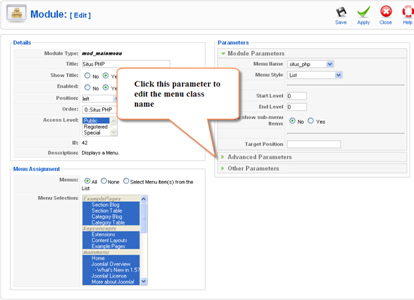
Picture 3.47 The page to edit the module
3. Click Advanced Parameters.
4. In the Class Suffix Module, fill with _menu.
Picture 3.48 Adding suffix which will be affect the relation to CSS
5. Click the Save button that is located in the upper toolbar.
Related posts:

[...] 3.3.4 Make New Joomla Menu Posted 13 November, 2009 Filed under: Uncategorized | 3.3.4 Make New Joomla Menu [...]