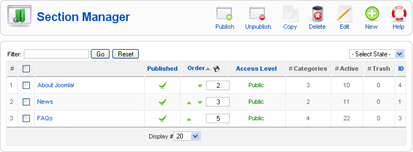
As already told before that the highest article groupings are section. You can manage the section in Section Manager. You can access it throught Content > Section Manager. Look at the picture 3.60.
Picture 3.60 Section Manager
In this Section Manager page, you can make, modify, and delete section. If you delete section which there is a category in it, the category will lose its “mother.” Because of the category must have a section, Joomla! is not allowed you to delete section which there is a category in it.
Beneath are the steps in making new article in Joomla!:
1. Open Article Manager through Content > Article Manager.
2. Click the New icon in the upper toolbar.
3. You will get the form to write the article. Here are the items in the form:
-Title: Type the title from the article which will you made.
- Alias: The text that you are written in this field will be publicated in url if you choose to optimize the URL for search engine.
- Section: Choose section from the available list.
- Category: Choose one category from the available category list. This category list depends from the section that you have been chose.
- Published: Confirmation whether you want to publish this article or not.
- Front Page: Does the article is published in the front page or not.
Article Manager is the management center of all of your articles in Joomla! You can access it through Content > Article Manager. From that page, you can see the whole article complete with section, category, author, etc. You can also do the sort action based on section, category, author, date, etc (according to the colomn in that page).
A rare opportunity, to get your site reviewed by the experts. We’ll take site submissions via e-mail and before the session starts, and go through real-life issues that effect developers when it comes to optimizing their app for search.
For presentation slides and all I/O sessions, please go to: code.google.com/events/io/sessions.html
http://go.tagjag.com/screencast - If you’re a Mac user, you may want to place a personal Dashboard Widget. In this screencast, Alex is going to show you how quick and easy it is to do this! Don’t forget that you can submit your screencast for possible promotion on our channels. All you need to do is to check out the instructions in the link at the beginning of this description!